Screen sharing has never been simpler. With the Powerology AIROMA USB-C to HDMI Wireless Display Adapter, you can forget the cable clutter and connect your laptop, tablet, or smartphone to any HDMI-equipped display instantly—whether you're settling in for an important business presentation, collaborating on a team project at university, or just streaming a movie night at home. Let’s walk through exactly how this wireless display adapter makes screen mirroring a breeze in every setting, ensuring seamless presentations and collaboration for students, remote workers, and professionals alike.
Why Choose the Powerology AIROMA USB-C to HDMI Wireless Display Adapter?
When it comes to wireless presentation tools, reliability, versatility, and speed are essential. The Powerology AIROMA USB-C to HDMI Wireless Display Adapter is designed to tick all these boxes. Its easy plug-and-play setup eliminates compatibility headaches, making it an ideal companion for students heading to lectures, professionals in boardrooms, and anyone working remotely from home or co-working spaces.
No more hunting for the right cable—this adapter bridges your modern USB-C devices directly to any display with an HDMI port, all without laying a single wire across the room. Whether you need to share slides in a snap or extend your desktop for productivity, the AIROMA adapter adapts to your environment.
Its portable, lightweight form factor fits easily in your laptop sleeve, backpack, or even your pocket. And because it’s made by Powerology, a trusted name in tech accessories, you know you’re getting a product built for everyday use. Let’s see how you can integrate this reliable adapter into any setting and accelerate your workflow.
Getting to Know Your Powerology AIROMA Wireless Display Adapter
Before you start sharing your screen, it helps to get familiar with your AIROMA USB-C to HDMI Wireless Display Adapter. Out of the box, you’ll find a compact, streamlined device in classic white, built with simplicity and convenience in mind. The USB-C connector ensures broad compatibility with modern laptops, tablets, and smartphones, while the HDMI output plugs directly into projectors, TVs, and monitors.
On the device, clear indicator LEDs let you know when the adapter is powered, connected, and ready to stream. Its minimalist design keeps your setup looking professional and uncluttered—ideal for impromptu meetings or classroom technology carts. All you need is a free HDMI port and a USB-C device with display output capability.
Because the AIROMA is wireless, you’re free to move around, interact with your content, and engage your audience without being tethered to a screen. That’s a major plus for those who like to present on the go or teach from different spots in the room.
Setting Up: First-Time Installation and Pairing
Getting started with the Powerology AIROMA wireless display adapter is straightforward and quick. Here’s a step-by-step guide:
- Connect the Adapter: Plug the USB-C end of the AIROMA into your device—be it a laptop, tablet, or compatible smartphone.
- Plug In the Display: Insert the HDMI output into the desired TV, monitor, or projector. Make sure the display is powered on and set to the correct HDMI input source.
- Wait for the Indicator: Watch the indicator LED on the adapter—once it’s blinking or solid (as per the manual), you’re ready to connect.
- Initiate Screen Mirroring: On your device, activate screen mirroring or casting (this may be called ‘Cast,’ ‘Wireless Display,’ or ‘Miracast’ depending on your operating system). The AIROMA should show up in your available devices list. Tap to connect.
The first connection may take a few extra seconds as your device pairs, but once established, subsequent connections are almost instant. For security and privacy, you may be prompted to approve the connection. After confirming, your screen will wirelessly mirror to the larger display—ready for whatever you want to share.

Use Case 1: Effortless Presentations in Schools and Auditoriums
If you’re a student or lecturer, the Powerology AIROMA becomes an indispensable presentation tool. Imagine walking into a classroom, plugging the adapter into your laptop, and mirroring your presentation instantly to the projector—no complicated AV racks, no hunting for the right cable, and no risk of compatibility failure mid-lesson.
Lecturers can easily switch devices between speakers, encourage student participation by letting anyone cast from their own device, and create a dynamic, interactive learning environment. For large lecture halls or workshops, the AIROMA ensures every attendee sees crisp, lag-free visuals from anywhere in the room.
Because you’re not physically tethered by cables, you can move around, engage with students, or annotate your slides right from your device. If you frequently present at different locations, having the AIROMA in your bag means you’re never at the mercy of new and unpredictable AV setups again.
Use Case 2: Professional Power for Office Meetings and Remote Work
For offices, meeting rooms, and remote workspaces, the Powerology AIROMA USB-C to HDMI Wireless Display Adapter is a stellar productivity booster. No more awkwardly passing around a single HDMI cable, interrupting meetings for tech support, or dealing with drivers on unfamiliar equipment.
Simply have the adapter connected to the room’s main display. As teammates arrive, they can take turns wirelessly sharing project dashboards, data visualizations, or video calls—keeping momentum and focus on the discussion. The AIROMA’s low latency and robust connectivity mean smooth transitions with minimal lag or distortion, perfect for high-stakes boardroom settings.
Remote workers or hybrid teams benefit too. If your laptop needs to connect to various monitors during the workweek, the wireless setup saves time and keeps your workspace clean. Move effortlessly from home to co-working spaces to client sites with a single, reliable tool for all your presentation needs.
Use Case 3: Home Entertainment and Personal Screen Sharing
The Powerology AIROMA adapter isn’t limited to professional use. At home, it opens up endless possibilities for streaming, gaming, and productivity. Mirror your smartphone’s screen to the big TV for movie nights, follow along with workout videos in your living room, or share photos with friends and family from anywhere in the house.
Gamers can easily project their gameplay onto a larger screen without being constrained by the couch or a short HDMI cable. For creative projects like editing videos or reviewing photos, seeing your content on a full-size monitor brings clarity and comfort—while the wireless connection keeps your setup tidy and flexible.
Switch quickly between devices—laptop, tablet, or phone—without plugging and unplugging. The AIROMA’s instant pairing and stable connection make it a household favorite for anyone who loves entertainment technology and seamless screen mirroring.
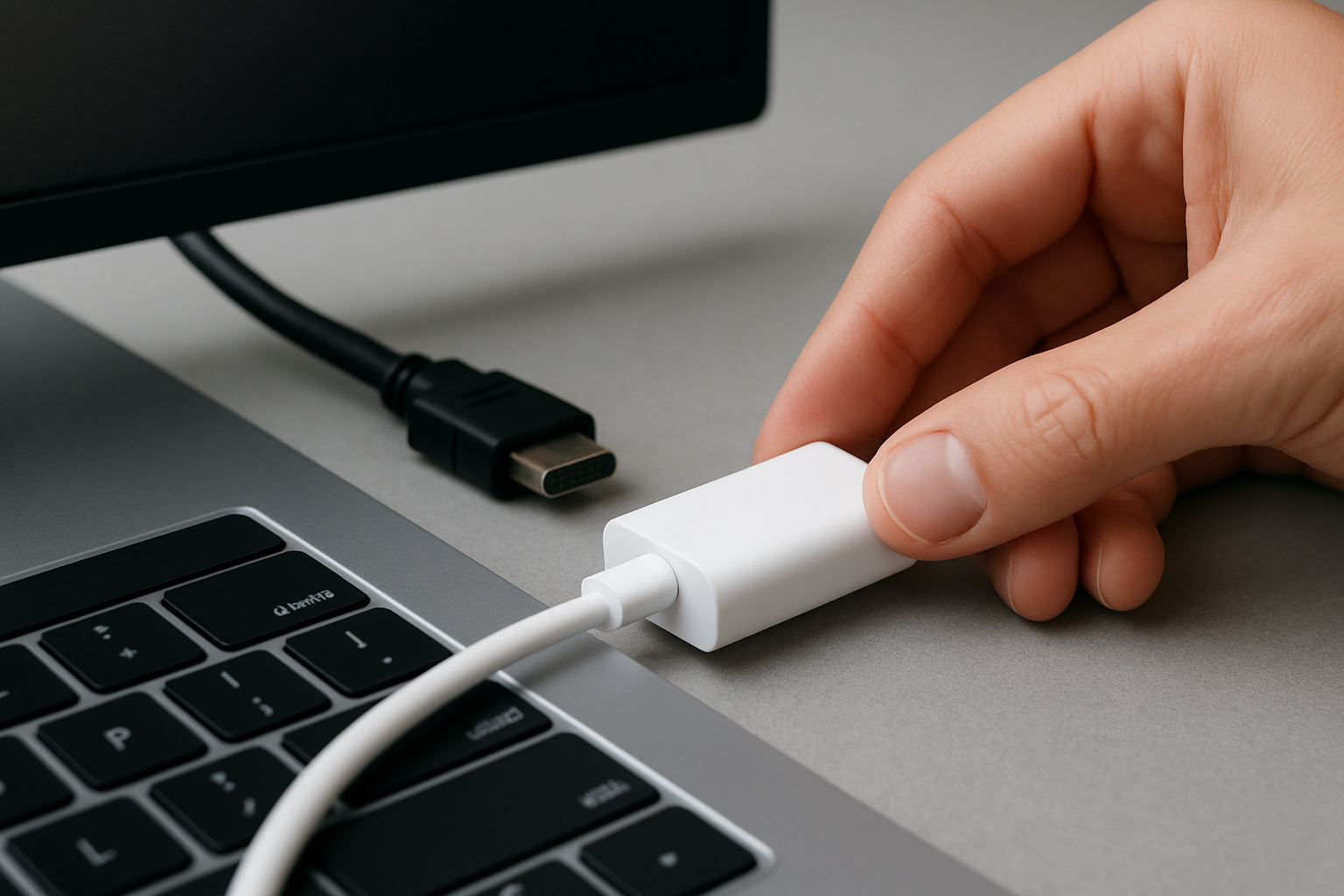
Troubleshooting Tips for Seamless Connectivity
Even with the Powerology AIROMA’s user-friendly design, a few quick troubleshooting steps can ensure your screen mirroring experience is always flawless:
- Connection Not Detected? Double-check that the adapter is firmly connected to both your USB-C device and the HDMI display. Confirm that your device supports video output over USB-C.
- Display is Flickering or Lagging? Make sure you are within the recommended wireless range. Remove physical obstacles between your device and the adapter to improve signal.
- Audio Not Transmitting? Some devices require you to manually set the audio output to HDMI/AIROMA in the sound settings once connected.
- Display Scaling Issues? Adjust the display/resolution settings on your device. This is especially helpful when presenting slides or spreadsheets for readability.
- Frequent Disconnects? Update your device’s firmware and restart both your device and the adapter. Keep both away from sources of strong wireless interference.
In most cases, these tips resolve typical connectivity hiccups, keeping your focus on what matters: your work or entertainment. Powerology’s build quality and support mean help is always close if you need it.
Advanced Tips: Making the Most of Your Wireless Display Adapter
To get the absolute best from your Powerology AIROMA USB-C to HDMI Wireless Display Adapter, consider these advanced tips:
- Multi-Device Flexibility: Pair the adapter with multiple laptops, smartphones, and tablets. Create user profiles or quick pairing shortcuts for frequent presenters or family members.
- Optimized Streaming: Adjust your screen resolution to match the display you’re connecting to—higher resolutions for presentations, lower for fast-paced video to minimize lag.
- Secure Connections: If privacy is a concern, look for security features such as encryption or password pairing, especially in shared meeting rooms or classrooms.
- Travel-Ready Convenience: The compact form factor is perfect for presentations-on-the-go, tech support visits, or impromptu movie nights wherever you find an HDMI display.
- Combining with Other Tools: Use with Powerology’s other accessories like portable chargers or stands to create a tailored work or entertainment station, anywhere you need it.
With minimal setup and powerful wireless performance, you can elevate both the functionality and professionalism of any space—home, office, or classroom.
The Powerology AIROMA vs. Traditional HDMI Cables—Why Go Wireless?
Why choose the Powerology AIROMA over old-school HDMI cables? There’s a world of difference that impacts ease of use, productivity, and the overall experience:
- Cable-Free Mobility: Walk around the room, interact with your audience, and present naturally—no cables anchoring you to the podium or TV stand.
- Universal Compatibility: One adapter works across a sea of HDMI-equipped displays and USB-C devices; no need for multiple cables or converters.
- Less Wear and Tear: Wireless connections mean fewer physical plug-ins, extending both your device’s and the adapter’s life.
- Tidy Workspaces: Eliminate cable clutter for a clean, modern look—at home, in the office, or at school.
- Swift Device Switching: Multiple users can connect in turn with no tangle of wires or lost adapters, streamlining collaborative work sessions.
The move to wireless is about making technology work for you—simple, elegant, and unobtrusive. With Powerology, you can be confident you’re using a robust tool designed for today’s connected environments.
Frequently Asked Questions About the Powerology AIROMA
- Which devices are compatible with the Powerology AIROMA? Any device with a USB-C port that supports video output can connect, such as most recent laptops, tablets, and smartphones.
- Does it support audio as well as video? Yes, the AIROMA transmits both video and audio for presentations, movies, or calls. You may need to select HDMI as your audio output on some devices.
- How far can I be from the display? For best results, stay within the recommended wireless range—typically up to a few meters. Walls and obstructions may reduce this range.
- Do I need to install any drivers? No drivers are required for most modern operating systems. The AIROMA is plug-and-play.
- Can it connect to multiple monitors? The adapter supports one HDMI display at a time. For extended multi-monitor work, consider additional adapters or a hub.
- Is there a delay or lag? The AIROMA is designed for low-latency connections, though streaming HD or high-action content may introduce minor lag compared to wired.
Still have questions? Powerology’s customer support is standing by to help you unlock the full potential of your wireless display adapter.